

Discover the best hidden iOS and Apple Intelligence tricks most US users completely miss. Maximize your iPhone’s daily potential with these top hidden features.
How many times have you updated your iPhone, clicked through the “What’s New” screens, and immediately went back to using it the exact same way as before? If you’re nodding your head, you aren’t alone. Modern iOS updates—including Apple Intelligence—are packed with game-changing upgrades, but Apple often buries the best stuff deep in settings.
From writing helpers to smart battery modes, your iPhone is hiding superpowers. We’re here to help you get the most out of your device. Here are the biggest hidden iOS and Apple Intelligence tricks US users are missing.
1. Fast-Track Your Way Past the Apple Intelligence Waitlist
If you’ve recently updated your iPhone 15 Pro, Pro Max, or iPhone 16 (or newer), you probably know you need to opt into Apple Intelligence. What people often don’t tell you is that there’s a waitlist, and it can sometimes feel like it takes ages to get approved.
To jump the line and make sure you’re ready, head straight to Settings > Apple Intelligence & Siri. Once there, tap Join the Apple Intelligence Waitlist. To speed things up, ensure your device language is set to English (United States) and that you are connected to a fast Wi-Fi network. Often, approval comes within a few hours—or even minutes—as long as your region and language settings are correct.
2. Let Your Phone Handle Your Battery Management
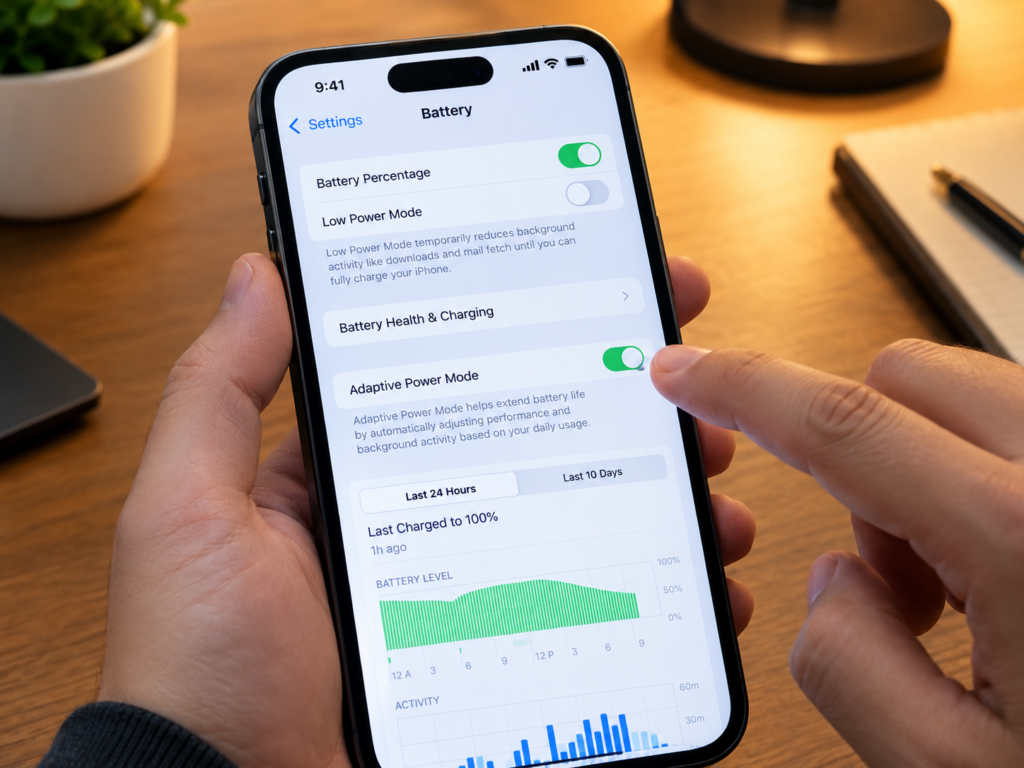
Almost everyone knows about Low Power Mode. It’s that trusty setting that kicks in when you hit 20% to save your battery’s life. However, iOS has a much smarter way to handle your daily battery use called Adaptive Power Mode.
Unlike the old brute-force method, this intelligent system studies your daily usage patterns and adjusts your device’s performance on the fly. It dials down background tasks when your phone is sitting idle in your pocket, but dials performance right back up when you’re gaming or capturing videos.
To turn it on:
- Go to Settings > Battery.
- Select Power Mode.
- Toggle on Adaptive Power.
It’s the ultimate set-it-and-forget-it feature for anyone tired of manually micro-managing their battery health.
3. Protect Your Privacy by Locking and Hiding Apps
We’ve all been there: you want to show a friend a photo or let them check something on your phone, but you’re quietly terrified they’ll swipe out and see a private notification or peek at a sensitive app. Apple finally answered our collective prayers with native app locking and hiding.
Instead of hiding apps in buried folders, you can lock them with Face ID or hide them completely from your Home Screen and search.
Here is how to do it:
- Press and hold the app icon you want to secure.
- Tap Require Face ID.
- Choose either Require Face ID (which keeps the app visible but locks it) or Hide and Require Face ID (which hides it in a locked folder at the very bottom of your App Library).
This keeps your personal apps, like finance, messaging, or photos, completely private without needing third-party vault apps.
4. Give Siri Real-World Eyes with “Visual Intelligence”
One of the most futuristic additions to your daily routine is “Visual Intelligence,” which basically gives Siri the ability to see and interact with your physical surroundings. Most people think of this as just a camera feature for looking up dog breeds or plants, but it’s far more useful than that.
By launching Siri mode while using your camera, you can point your phone at everyday things to trigger quick actions:
- Point it at a restaurant flyer to quickly RSVP or save the dates and times straight to your Calendar.
- Aim it at a business card to turn a phone number into a contact with one tap.
- Show it a loyalty card or membership barcode to automatically generate a Wallet pass.
It cuts out the tedious typing, making your phone a true bridge between your digital life and the physical world.

5. Clean Up and Reframe Your Photos in Seconds
The Photos app has received massive, AI-powered upgrades that make editing almost effortless. The standout is the “Clean Up” tool, which allows you to remove unwanted background distractions—like a stranger walking through your beach shot—simply by tapping or circling them.
But the real unsung hero is the ability to extend and reframe your shots. If you take a picture that’s too tight or has an off-center subject, Apple Intelligence can fill in missing background details to help the image fit your screen, or use “Spatial Reframing” to adjust the composition after the shot was taken. Finding your favorite memories is also much easier: you can describe a highly specific moment in natural language (like “kids playing in the backyard with the dog last fall”), and the search will locate exact matches instantly.
6. Dictate the Sound and Flow of Your Video Captures
If you’re a creator, or simply love recording family moments, iOS features some game-changing audio and camera tweaks. You can now use your AirPods or wireless earbuds as a wireless microphone while recording video. This makes vlogging or capturing family clips outdoors so much better, as the phone cuts through environmental noise to capture your voice with crystal-clear quality. Even better, you can use your connected earbuds as a remote shutter button, making group photos or solo video shoots incredibly easy.